Online code editor
Learn how to build a collaborative code editor using ReactJs for the frontend and Node.js for the backend. This guide covers setting up the development environment, creating the code editor with the Monaco Editor, and implementing real-time synchronization using CRDT. Follow along to create a seamless, real-time collaborative coding experience.
- published
- reading time
- 4 minutes
Where to Start?
This is the hardest part of any project (for me at least :p).
Let’s list down the requirements:
- A webpage to write code on (this will be our client, i.e., browser).
- Sync between all the clients connected to the webpage.
For creating a webpage, we can choose ReactJs, which has multiple libraries that can help us with the code editor part.
For the sync part, we need a server that will receive edit requests and then broadcast the edits to all the connected clients. The server should also handle any conflicts in the data, for which there are mainly two implementations:
- OT (Operational Transformations)
- CRDT (Conflict-free Replicated Data Type)
Reference: Link
For implementing the server, we can pick any language and framework. I selected Node.js for its faster development speed and mature CRDT libraries like Automerge and Yjs.
Finally, we will use ReactJs for the frontend (Editor) and Node.js for the backend (WebSockets, HTTP server).
Setting Up the Development Environment
Before setting up, let’s understand the difference between npx and npm:
- npm -> (Node Package Manager)
- npx -> (Node Package Execute)
Key Differences
-
Installation:
- npm: Installs packages locally or globally, which are then available for use in your projects or globally on your system.
- npx: Does not require the installation of packages. It fetches and executes them on-the-fly from the npm registry or from a specified location.
-
Usage Context:
- npm: Used for managing and installing packages, updating dependencies, and executing scripts defined in
package.json. - npx: Used for running CLI tools and scripts directly without prior installation, helpful for occasional use or running specific package versions.
- npm: Used for managing and installing packages, updating dependencies, and executing scripts defined in
-
Global vs. Local Scope:
- npm: Can install packages globally (
npm install -g <package>) or locally within a project (npm install <package>). - npx: Executes packages without installing them globally or locally, ensuring that the command is executed with the latest version from the registry.
- npm: Can install packages globally (
Frontend Setup
We will create our React app using:
npx create-react-app codedoc-frontend
and then start the app by running:
cd codedoc-frontend
npm start
Creating the Editor
We will be using the Monaco Editor and Yjs for utilizing CRDT.
Install using:
npm install @monaco-editor/react
npm install yjs y-monaco y-websocket
Creating a component named Room which will have the Editor:
/src/components/Room.js
import Editor from '@monaco-editor/react';

function Room() {
    return (
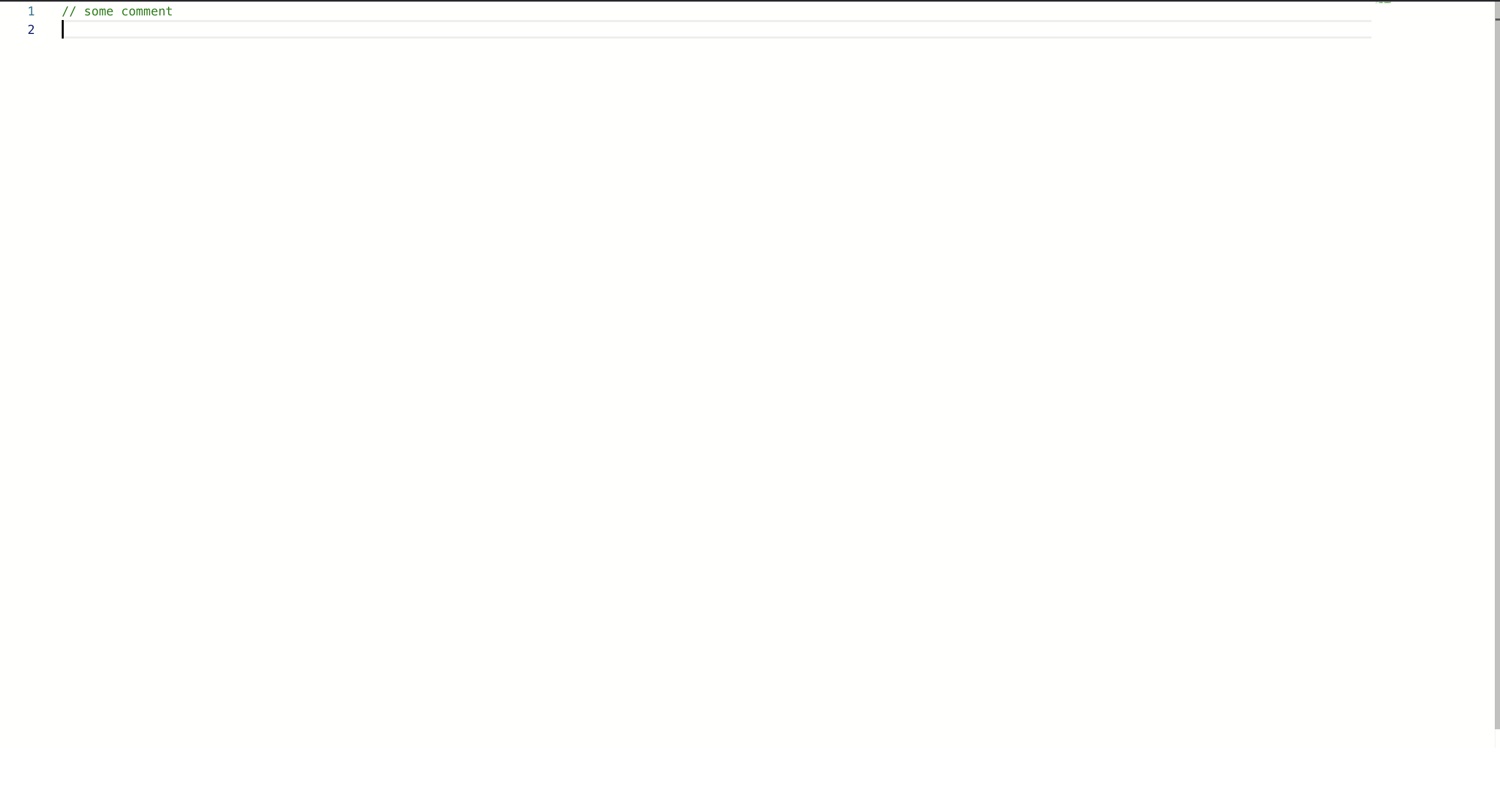
        <Editor height="90vh" defaultLanguage="javascript" defaultValue="// some comment" />
    );
}

export default Room;
Your app will look like this:
/src/App.js
import './App.css';
import Room from './components/Room';

function App() {
    return (
        <div className="App">
            <Room />
        </div>
    );
}

export default App;
Constants
We will store all the constant variables like default language, available languages, and boilerplate code in constants.js:
export const LANGUAGES = [
    "javascript",
    "cpp",
    "python"
];

export const DEFAULT_LANGUAGE = "python";

export const LANGUAGE_COMMENT = {
    javascript: "// some comment",
    cpp: "// some comment",
    python: "# some comment"
};
Language Selector
Let’s create a component LanguageSelector.js to help change the language of the code editor.
Let’s improve our development speed by using pre-built components ready to use:
npm install @mui/material @emotion/react @emotion/styled
LanguageSelector.js
const LanguageSelector = (props) => {
    const handleChange = (event) => {
        const {
            target: { value },
        } = event;
        props.onSelect(value);
    };

    return (
        <FormControl sx={{ width: 300, mt: 3, mb: 1 }}>
            <InputLabel>Language</InputLabel>
            <Select
                value={props.selected}
                onChange={handleChange}
                input={<OutlinedInput label="Language" />}
                MenuProps={MenuProps}
            >
                {LANGUAGES.map((language) => (
                    <MenuItem key={language} value={language}>
                        {language}
                    </MenuItem>
                ))}
            </Select>
        </FormControl>
    );
}

export default LanguageSelector;
Setting Up Backend
As we decided, we will be running our backend on Express using Node.js:
mkdir codedoc-backend
cd codedoc-backend
npm init -y
npm install express ws yjs y-websocket
vim server.js
server.js
const express = require('express');
const http = require('http');
const WebSocket = require('ws');
const { setupWSConnection } = require('y-websocket/bin/utils');

const app = express();
app.use(express.json());

const server = http.createServer(app);
const wss = new WebSocket.Server({ server });

wss.on('connection', (ws, req) => {
    setupWSConnection(ws, req);
});

server.listen(1234, () => {
    console.log('Server is listening on port 1234');
});
Here, the setupWSConnection handles the broadcasting of the messages to all connected clients.
Binding the Monaco Editor with Yjs
This method is used for creating a shareable data structure Y.doc and setting up the WebSocket connection to our Node.js backend:
const syncEditor = (editor) => {
    const doc = new Y.Doc();
    const newProvider = new WebsocketProvider('ws://localhost:1234', roomId, doc);

    const ytext = doc.getText("monaco");

    const newBinding = new MonacoBinding(ytext, editor.getModel(), new Set([editor]), newProvider.awareness);

    setProvider(newProvider);
    setBinding(newBinding);
};
Fast Forwarding…
Now, what I did was basically beautify the React app and made some nit fixes. You can check the complete code here: https://github.com/medntknw/codedoc.
The editor is also online for testing, but the backend sometimes becomes unresponsive (deployed it on render.com) :(
https://codedoc-frontend.vercel.app/